Preview & editing on the page itself
The preview shows the page as a visitor sees it — and in visual mode you edit text right where it sits.
1 The preview in the middle
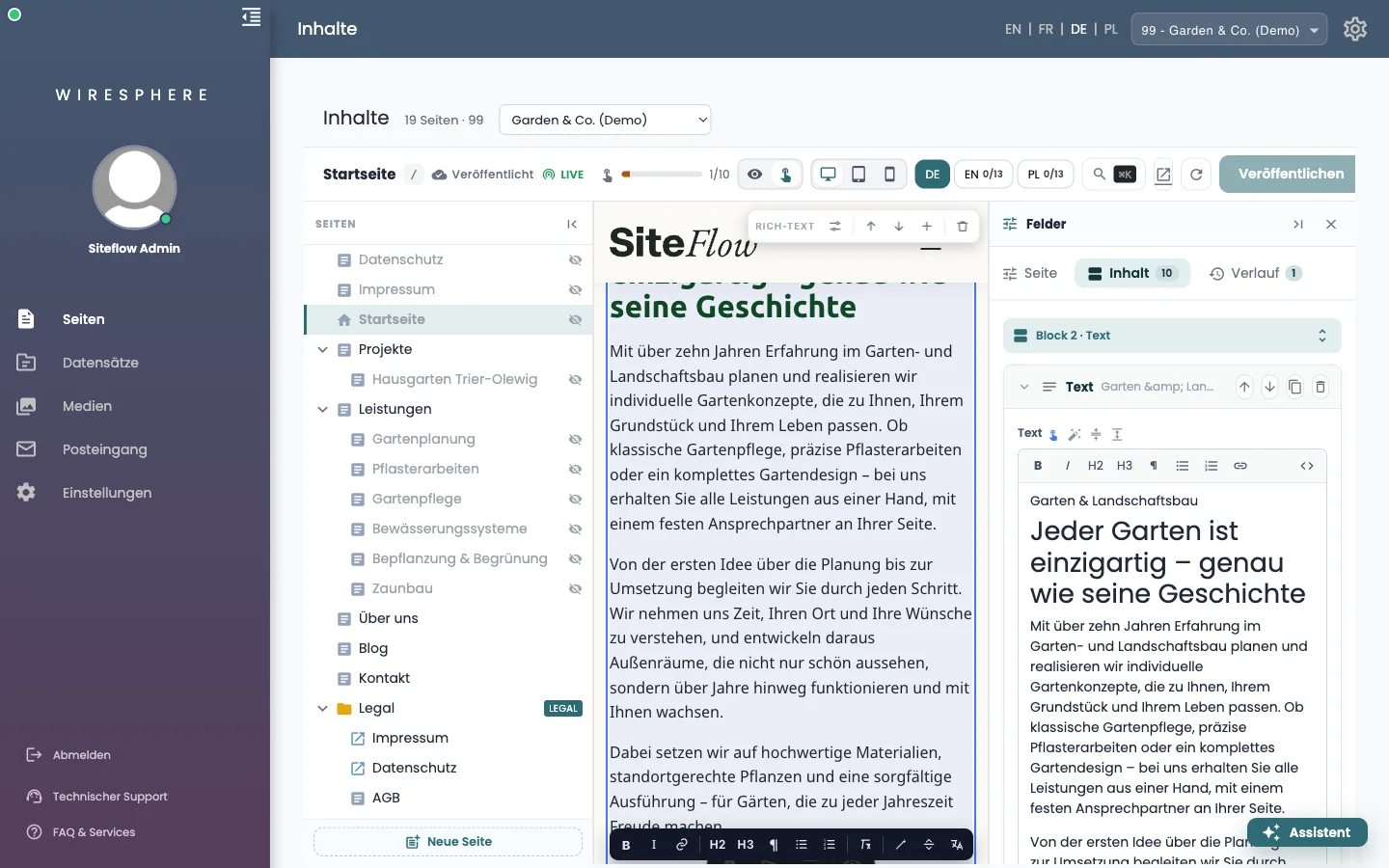
As soon as you select a page it appears in the middle — not as a picture, but as the real page. When the bar reads LIVE, your changes show up in it without a reload. The three icons beside it switch between desktop, tablet and phone; the arrow opens the preview in its own tab, the circle reloads it.

2 Look, or touch
The toggle with the eye and the hand has two states. The eye means look only: you click through the page like a visitor. The hand turns on visual mode. Clicking an editable spot selects its block: it gets an outline, a small toolbar appears above it with move up, move down, insert a block after and remove block, a second one on the text for formatting — and the fields panel on the right jumps to exactly that block.
3 What cannot be touched in place
Next to the toggle sits a bar with two figures — 1/10 in the picture above: that many blocks on this page can be edited on the page itself. How many depends on your design; with some it is nearly every block, with others just one. Everything else you maintain in the fields panel on the right — and anything that is not visible text (addresses, relations, spacing) only ever there. A block that cannot do it carries a struck-through pencil in the list; the bar tells you before you click in vain.